
App Guides
The Distance Between Us Widget: Put the Miles on Your Lock Screen
Inside CloserTo
The lock-screen widget keeps the distance and the next reunion visible without opening the app.
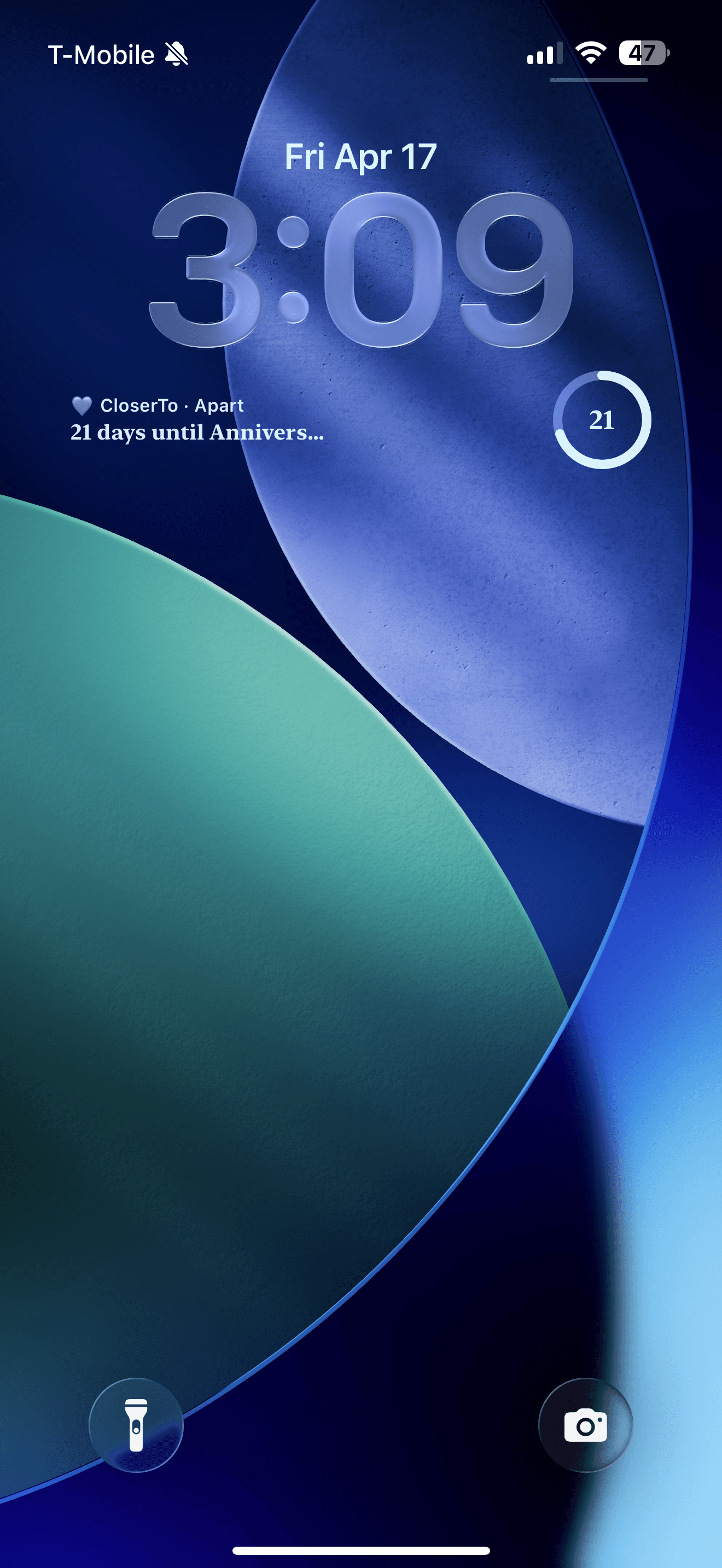
There’s a specific genre of TikTok that makes every long-distance couple cry on cue: a phone screen showing “1,847 miles” one day, then a time-lapse of that number shrinking, and finally a lock screen that just says “0 miles” while two people hug in an arrivals hall. That’s the distance widget. And if you’ve landed here wondering how to get that number on your own lock screen, this guide walks you through exactly what you need, how to set it up, and what it actually does with your location.
Why a number on your lock screen hits so hard
Distance is a weirdly abstract thing to grieve. You can’t see it or hold it; it’s just an absence that follows you around. What a distance widget does, emotionally, is make the abstract concrete. “Far away” becomes “4,132 miles,” and something about naming the number makes it feel less like fog and more like a fact you’re actively surviving. Couples describe it as oddly comforting: the ache gets a shape.
And then there’s travel day, which is the whole reason this widget went viral. You board the plane at 4,132 miles. You land at 212. You get on the train and watch it fall through the hundreds, the tens, the single digits, until the widget finally reads zero and the person is standing in front of you. Watching the distance collapse in real time turns a stressful travel day into a countdown you can feel in your chest. It’s the rare piece of phone software that makes people cry in a good way.
There’s a quieter everyday value too. On ordinary days, glancing at the number is a tiny ritual of acknowledgment: yes, they’re far, yes, this is hard, and yes, you’re both still choosing it. If you’re in the thick of that, our guide on how to survive a long-distance relationship pairs well with this one.
What you need for a distance widget on iPhone
The good news: there’s no jailbreaking, no Shortcuts wizardry, no spreadsheet of coordinates. A proper distance apart widget on iPhone needs three things:
- iOS 16 or later for lock-screen widgets. (Home Screen widgets have been around longer, but the lock screen is where this widget lives its best life. CloserTo itself needs iOS 17.6 or later.)
- An app both partners install. Distance is measured between two phones, so this is a two-person setup. One partner can’t do it alone.
- Location permission from both sides. Each of you grants it on your own phone, and each of you can revoke it on your own phone. No one can turn on sharing for someone else.
That second point is worth pausing on. Some couples try to fake a distance widget with generic location apps or family-tracking tools, and it always ends up feeling a bit off, because those apps are built for logistics, not love. A long-distance relationship app built around the two of you treats the distance as one part of a bigger picture: the countdown, the daily photos, the days you’ve been together.
How to set up the distance widget with CloserTo
CloserTo is a free iOS app for long-distance couples, and its distance display is one of the things it does best. Here’s the whole setup, start to finish:
- Both partners install CloserTo and pair. Download CloserTo on the App Store, create your profiles, and link up as a couple. Everything in the app is built for exactly two people.
- Enable location sharing, both of you. In the app, each partner opts in to location sharing on their own phone. It’s permission-based on both sides: the distance only appears once you’ve both said yes, and either of you can switch it off anytime.
- Add the lock-screen widget. Long-press your lock screen, tap “Customize,” select the lock screen, tap the widget area below the clock, find CloserTo in the list, and add the distance widget. Tap “Done” and it’s live.
- Pick your variants. CloserTo has several widget faces: the distance between you, the countdown to your next visit, days together, streaks, and your latest daily photo. Many couples put distance on the lock screen and the daily photo on the Home Screen.
Privacy: what the distance widget does and doesn’t share
Any feature involving location deserves a straight answer, so here it is. The distance display exists to answer one question: how far apart are we right now? It is not a live map of your partner’s movements, and it’s not surveillance dressed up as romance.
- What it shows: the distance between your two phones, as a number. That’s the product.
- What it doesn’t do: constant tracking, movement history, or “why were you at that address” energy. If a distance feature ever feels like monitoring, that’s a relationship conversation, not a widget setting.
- Opt-in on both sides: in CloserTo, location sharing only works when both partners have individually enabled it. One person can’t quietly switch it on for the couple.
- Reversible anytime: either partner can turn sharing off in settings whenever they want, no negotiation required, and the widget simply stops showing a distance.
Healthy long-distance couples use the distance number the way they use a countdown: as a shared little landmark, not a leash. If you both love it, keep it. If either of you ever feels weird about it, turn it off and the rest of the app works exactly the same.
Other widgets long-distance couples love
Once you’ve tasted the joy of glancing at your lock screen and feeling closer, you’ll probably want the full set. These are the ones couples keep long after the novelty wears off:
The countdown widget
Days until you’re together again, ticking down on the lock screen. It reframes the wait from “endless” to “finite,” which is quietly everything in long distance. On the morning it finally says zero, screenshot it. You’ll want that one.
The streak widget
If you and your partner do CloserTo’s Daily Photo, your streak counts every consecutive day you’ve both shared one photo. Seeing the streak on your Home Screen is a gentle nudge on the days you’d otherwise forget, and watching it climb into the double and triple digits is genuinely satisfying.
The daily photo widget
Your partner’s latest daily photo, right on your Home Screen. It updates when the day’s photos reveal, so unlocking your phone occasionally means catching a brand-new glimpse of their day: their coffee, their commute, their tired-but-cute face. Small, and somehow enormous.
The distance widget is a two-minute setup that changes how your phone feels for the rest of the distance. Get the number on your lock screen, watch it every so often, and hold on for the day you get to watch it fall to zero.
Frequently asked questions
- How do I get the distance widget on my iPhone?
- You need iOS 16 or later for lock-screen widgets, plus an app that both partners install and pair, like CloserTo. Once you’re paired and you’ve both opted in to location sharing, long-press your lock screen, tap Customize, tap the widget area, and add the CloserTo distance widget. The miles between you update automatically from then on.
- Does the distance widget track my exact location?
- No. The widget exists to show one number: the distance between you and your partner. It isn’t a live map or a tracking feed. In CloserTo, location sharing is optional and permission-based, both partners have to opt in for the distance to appear at all, and either of you can switch it off at any time in settings.
- Do both partners need the app for the distance widget to work?
- Yes. A distance widget needs two points to measure between, so both of you install the app, pair your accounts, and each grant location permission on your own phone. If either partner hasn’t opted in, no distance is shown. CloserTo is free on iOS, and the distance display works on the free tier.
- Does the distance widget drain my battery?
- Not noticeably. Widgets like this refresh periodically rather than streaming your position continuously, which is a very different battery profile from turn-by-turn navigation. If you ever want to pause it entirely, you can turn off location sharing in the app and the widget simply stops showing a distance.
Keep reading
App Guides
Open When Letters: 25+ Ideas for Long-Distance Couples
Open when letters let you comfort your partner at the exact moment they need it, even when you’re asleep three time zones away. Here’s what to write and when.
App Guides
The Long-Distance Countdown: Why Counting Down to Your Next Visit Works
A countdown gives every goodbye an expiry date. Here’s the psychology behind why it helps, and how to put your reunion countdown right on your lock screen.
App Guides
The Best Daily Photo App for Couples: One Photo a Day, Revealed Together
A daily photo ritual beats a firehose of snaps. Here’s what to look for in a photo-a-day app for couples, how mutual reveal works, and 18 prompts for boring days.